Skip to content
View in the app

A better way to browse. Learn more.

Hanspeter Kruesi .com

A full-screen app on your home screen with push notifications, badges and more.

To install this app on iOS and iPadOS
  1. Tap the Share icon in Safari
  2. Scroll the menu and tap Add to Home Screen.
  3. Tap Add in the top-right corner.
To install this app on Android
  1. Tap the 3-dot menu (⋮) in the top-right corner of the browser.
  2. Tap Add to Home screen or Install app.
  3. Confirm by tapping Install.
Search Tags !

How To Groove On Jazz Guitar - Tabs, Audio & Backing Track 1.0.0

(1 review)

2 Screenshots

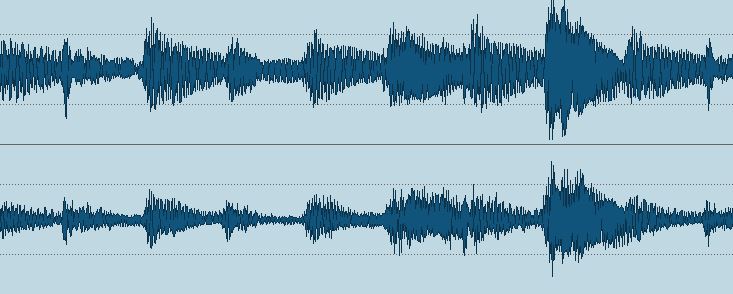
Here you find a selection of jazz guitar groove and timing exercises with only 2 chords. These are Am7 / D7. It's a vamp which repeats itself all the time so you can concentrate on the exercises. They represent the summary of most possible rhythm figures which might come across your way. Jazz guitar rhythm patterns are very often 2 bar patterns which altering on and off beat figures. All exercises have to be done with the foot on 2 & 4 if you really want to get those figures grooving. The audio files are the backing track + the audio of the tabs with metronom.

These files are associated to this tutorial here :


User Feedback

You may only provide a review once you have downloaded the file.

   1 of 1 member found this review helpful 1 / 1 member

Good intro to Jazz rhythm.  I found that I used your backing track to develop a simple song in just about any key and throw in some melody and different positions for these same chords.  


Response from the author:

Hey Rossi, yes this should help everybody to get into jazz rhythm. Cool that you can use my backing tracks for creativity. If you publish it somewhere - just write the credits somewhere. :rolleyes::riffer:

Account

Navigation

Search

Search

Configure browser push notifications

Chrome (Android)
  1. Tap the lock icon next to the address bar.
  2. Tap Permissions → Notifications.
  3. Adjust your preference.
Chrome (Desktop)
  1. Click the padlock icon in the address bar.
  2. Select Site settings.
  3. Find Notifications and adjust your preference.